
GPU accelerated circuit simulation with Pennylane Lightning

The qBraid Lab GPU server provides access to an NVIDIA V100 GPU, and is tailored for researchers and developers requiring enhanced computational capabilities. This high-performance Lab instance allows users to leverage GPU accelerated circuit simulation, to explore quantum machine learning applications with GPU-enabled quantum gradients, and more. For exclusive early access, join our pre-launch waitlist.
The GPU Lab image comes pre-configured with the NVIDIA cuQuantum SDK GPU simulator library, and includes GPU integrations with other popular quantum software packages including Pennylane.
Launch GPU instance
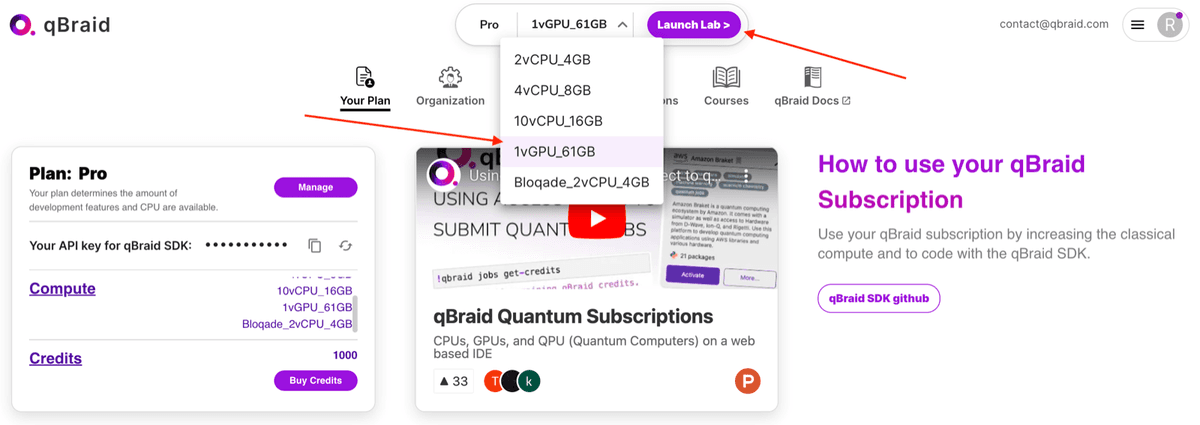
Use the drop-down at the top of your account page to select the GPU Lab image, and then click Launch Lab. At the moment, the GPU Lab instance is in beta, so is restricted to users who have been granted early access (see pre-launch waitlist). For enterprises and organizations seeking early access, or for other individual inquiries, feel free to contact us directly.
Setup Pennylane Lightning GPU environment
PennyLane is a cross-platform Python library for quantum machine learning, automatic differentiation, and optimization of hybrid quantum-classical computations. The PennyLane-Lightning-GPU plugin extends the Pennylane-Lightning state-vector simulator written in C++, and offloads to the NVIDIA cuQuantum SDK for GPU accelerated circuit simulation.
The lightning.gpu device is an extension of PennyLane’s built-in lightning.qubit device. It extends the CPU-focused Lightning simulator to run using the NVIDIA cuQuantum SDK, enabling GPU-accelerated simulation of quantum state-vector evolution. Install the environment on qBraid Lab.
Launch demo notebook
Navigate to the qbraid-lab-demos GitHub repository, and click the Launch on Lab button to clone repository into qBraid Lab account. The repository is now cloned into your qBraid files.
Benchmarking circuit evaluation
From the files in the left sidebar, double-click qbraid_lab > gpu > lightning_gpu_benchmark.ipynb to open the example notebook. Make sure your kernel is set to Python 3 [Lightning], see Switch notebook kernel.
In this notebook, we compare the execution time for the remote Braket SV1 device and the Pennylane lighting.gpu device. Our first step is to create a simple circuit:
Read more at https://docs.qbraid.com/v2/lab/user-guide/gpus